Western Tractor Logo

Microsoft 365 Copilot Training Plan

Empowering Your Productivity

Sidney Shapiro, PhD

Assistant Professor of Business Analytics

Dhillon School of Business

University of Lethbridge

Your Feedback

Microsoft 365 Copilot Training

Empowering Western Tractor with AI-Powered Productivity

Welcome to Microsoft 365 Copilot Training

Microsoft 365 Copilot is an AI-powered assistant that integrates seamlessly into your daily work across Word, Excel, Outlook, Teams, and other Microsoft 365 applications. This training session is designed specifically for Western Tractor employees to help you harness the power of AI to enhance productivity, streamline workflows, and deliver better results for our customers.

Whether you're in Sales creating customer proposals, managing Parts inventory, documenting Service work, or handling Administrative tasks, Copilot can help you work smarter and faster while maintaining the quality and professionalism Western Tractor is known for.

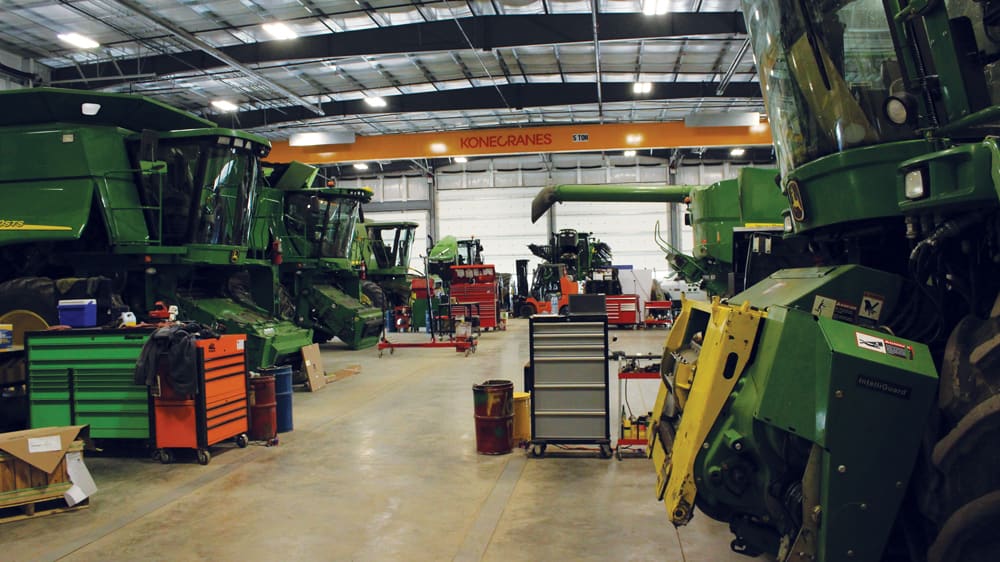
Western Tractor Service Department

Why This Training Matters

  • Stay Competitive: AI tools are becoming essential in modern business operations. Learning Copilot now positions Western Tractor and our team members at the forefront of productivity innovation.
  • Save Time: Copilot can help you draft emails, analyze data, create documents, and summarize meetings faster, giving you more time to focus on what matters mostβ€”serving our customers.
  • Improve Quality: With proper prompting, Copilot helps ensure consistent, professional communications and documents across all departments.
  • Reduce Errors: Copilot can help catch inconsistencies, suggest improvements, and ensure important details aren't missed in your work.
  • Enhance Collaboration: Better meeting summaries, clearer action items, and more effective communication help teams work together more efficiently.
AI Copilot Training

What We Hope to Accomplish in this Session

🎯 Build Confidence

Develop practical skills and confidence to use Copilot effectively in your daily work across all Microsoft 365 applications.

By the end you will have used Copilot in at least one app and completed a hands-on activity with your group.

πŸ’‘ Learn Best Practices

Master the art of effective prompting and understand when and how to use Copilot for maximum benefit while maintaining quality.

By the end you will be able to write a clear prompt (Context + Task + Format + Quality) and use it in at least one app (e.g. Outlook or Excel).

πŸš€ Apply Real Solutions

Work through hands-on exercises using real Western Tractor scenarios to solve actual business challenges.

By the end you will have applied Copilot to a real Western Tractor scenario (e.g. customer email, data analysis, meeting recap, or a creative task).

πŸ›‘οΈ Use Safely

Understand trust, safety, and verification practices to ensure Copilot outputs meet Western Tractor's quality standards.

By the end you will know how to verify Copilot output before using it and when to use Copilot vs. handle a task yourself.

πŸš€ Quick Start

New to Copilot? Start here:

  1. Learn the Mindset & Fundamentals - Understand the core prompting formula (Context + Task + Format + Quality)
  2. Try the Prompt Builder - Use our interactive tool to create effective prompts for your needs
  3. Explore Examples - See real Western Tractor use cases organized by department
  4. Practice with Exercises - Hands-on activities during the session to build your skills
AI Productivity Tools

πŸ“… Training Schedule

Time Activity Duration
0:00 - 0:15 Introduction & Mindset 15 min
0:15 - 0:35 Core Framework & Prompting 20 min
0:35 - 0:55 Copilot Across Apps Demo 20 min
0:55 - 1:00 Trust & Safety 5 min
1:00 - 1:05 Break & Team Formation 5 min
1:05 - 1:25 Activity 1: Customer Communication 20 min
1:25 - 1:45 Activity 2: Data Analysis 20 min
1:45 - 2:05 Activity 3: Meeting Efficiency 20 min
2:05 - 2:15 Activity 4: Creative Problem Solving 10 min
2:15 - 2:20 Break & Q&A Prep 5 min
2:20 - 2:40 Q&A Session 20 min
2:40 - 3:00 Wrap-Up & Next Steps 10 min

Total Duration: 3 hours (includes breaks)

🎯 Hands-On Activities & Sample Data

During Hours 2-3, you'll work through 4 hands-on activities using real Western Tractor scenarios. All activity instructions, group assignments, datasets, and sample prompts are available in the Activities tab.

⚑ Quick Links

Common tasks and quick references:

  • β€’ Customer follow-ups
  • β€’ Service reminders
  • β€’ Tone adjustments
  • β€’ Service reports
  • β€’ Equipment proposals
  • β€’ Policy documents
  • β€’ Sales trends
  • β€’ Inventory analysis
  • β€’ Budget reports
  • β€’ Meeting recaps
  • β€’ Action items
  • β€’ Pre-read outlines

Key Questions We'll Address

  • How do I craft an effective prompt for Copilot? Learn the proven formula: Context + Task + Format + Quality
  • How do I ensure the quality of information Copilot generates? Understand verification practices and quality checks
  • When should I use Copilot vs. handle tasks manually? Learn best practices for different scenarios
  • How can Copilot help my specific department? Explore department-specific use cases and examples

Ready to Get Started?

Explore the tools and resources available in the tabs above:

Your Feedback

πŸ“š Case Study

Explore a decision scenario: Western Tractor faces a supply chain crisis due to US tariffs. Follow Sarah Chen as she decides whether to use Copilot.

Read Case Study β†’

🎯 Bonus Activities

Advanced scenarios with diverse datasets: currency analysis, market research, customer segmentation, sales performance, stock market, and supply chain.

Explore Activities β†’

Hands-On Activities & Group Assignments

During Hours 2-3, you'll work through 4 hands-on activities using real Western Tractor scenarios. This page contains all group assignments, datasets, and sample prompts for each activity.

Work collaboratively with your group to explore different prompting approaches, analyze data, and create professional communications using Microsoft 365 Copilot.

πŸ“š Group Briefings & Materials

Each group has their own folder with comprehensive briefing instructions, data files, and multiple prompting approaches. Click your group number to access your materials.

πŸ‘₯
Group 1
Ryan H, Derek V, Jalyn F, Mitch P, Adrian H
πŸ‘₯
Group 2
Leighton S, Dustin F, Kyle G, Cole J, Jason K
πŸ‘₯
Group 3
Kyle H, Dylan B, Justin W, John P, Curtis V
πŸ‘₯
Group 4
Patrick H, Conrad V, Heather H, Jason S, Mike R
πŸ‘₯
Group 5
Paulina T, Jose S, Taylor H, Bill V, Adrian W
πŸ‘₯
Group 6
Twan V, Jasen M, Jordan M, Tad H, Nathan A
πŸ‘₯
Group 7
Dallas S, Dale L, Clayton W, Chris B, Dennis H

Each briefing includes: comprehensive instructions, multiple prompting approaches, analysis types, insights to explore, and all necessary data files.

πŸ“‹ Activity Packets

Complete printable instructions for all 4 activities, including scenarios, step-by-step guides, success criteria, and troubleshooting tips. Perfect for printing and distributing to teams.

πŸ“„ Open Activity Packets β†’

Includes: Activity 1 (Customer Communication), Activity 2 (Data Analysis), Activity 3 (Meeting Efficiency), Activity 4 (Creative Problem Solving)

πŸ“§ Activity 1: Customer Communication Challenge

Duration: 20 minutes

Each group has been assigned a different customer who recently purchased equipment. Create personalized communications using Outlook or Word Copilot. See your group briefing page for specific assignments and data files.

πŸ’‘ Sample Prompts:

For Thank-You Email (Groups 1, 4, 7):
"Draft a professional, friendly email to [Customer Name] thanking them for their recent purchase of [Equipment]. Include a reminder about our service department availability, mention the importance of regular maintenance, and invite them to our upcoming customer appreciation event. Use a warm, appreciative tone."
For Maintenance Guide (Groups 2, 5):
"Create a one-page maintenance guide for [Equipment Model]. Include: first service requirements (50 hours or 3 months), regular service intervals (every 250 hours or 6 months), winter preparation checklist, spring preparation checklist, and contact information for our service department. Format it as a clear, easy-to-follow reference document."
For Parts Promotion (Groups 3, 6):
"Draft a parts promotion announcement for [Customer Name] who recently purchased [Equipment]. Highlight our upcoming parts sale (20% off select parts), mention parts relevant to their equipment, include sale dates (November 20-30, 2024), and provide ordering information. Use an engaging, promotional tone."

πŸ“Š Activity 2: Data Analysis & Reporting

Duration: 20 minutes

The sales manager needs insights from Q4 sales data to prepare for a management meeting. All groups use the same dataset.

πŸ“ Dataset (All Groups):

πŸ’‘ Sample Prompts:

"Analyze the Q4 sales data and identify the top 3 equipment categories by total sales. Create a summary with key insights."
"Calculate the average sale price for each location (Lethbridge, Taber, Burdett, Medicine Hat) and identify any trends."
"Create a summary of sales trends by customer type (Farm, Commercial, Residential) with recommendations for Q1."
"What insights can you provide about payment methods used? Which locations prefer financing vs. cash?"

πŸ’¬ Activity 3: Meeting Efficiency Challenge

Duration: 20 minutes

The service department just finished a team meeting. Each group processes a different meeting transcript. See your group briefing page for specific assignments and data files.

πŸ’‘ Sample Prompts:

For Meeting Recap (Groups 1, 4, 7):
"Summarize this service department meeting, highlighting key discussion points and decisions made. Format as a clear, professional meeting recap."
For Action Items (Groups 2, 5):
"Extract all action items from this meeting transcript. List them with owners and deadlines if mentioned. Format as a clear action items document."
For Pre-Read Outline (Groups 3, 6):
"Create a pre-read outline for next week's service department meeting based on the action items and topics discussed in this transcript. Format as a structured outline."

πŸ’‘ Activity 4: Creative Problem Solving

Duration: 10 minutes

Each group receives a unique Western Tractor scenario. Use Copilot creatively to solve it!

Scenarios by Group:

Group 1: Ryan H, Derek V, Jalyn F, Mitch P, Adrian H
Create a parts ordering template that auto-calculates totals
Group 2: Leighton S, Dustin F, Kyle G, Cole J, Jason K
Draft a customer service policy document
Group 3: Kyle H, Dylan B, Justin W, John P, Curtis V
Generate a social media post about new equipment arrivals
Group 4: Patrick H, Conrad V, Heather H, Jason S, Mike R
Create a training checklist for new service technicians
Group 5: Paulina T, Jose S, Taylor H, Bill V, Adrian W
Draft a proposal for a bulk equipment purchase
Group 6: Twan V, Jasen M, Jordan M, Tad H, Nathan A
Create a preventive maintenance schedule template
Group 7: Dallas S, Dale L, Clayton W, Chris B, Dennis H
Design a customer satisfaction survey and analysis template

πŸ“ Reference Data (Optional):

πŸ’‘ Sample Prompts (Examples):

For Parts Ordering Template (Group 1):
"Create an Excel template for parts ordering that includes: part number, part name, quantity, unit price, and a formula to calculate total. Include a section for customer information and order date."
For Customer Service Policy (Group 2):
"Draft a comprehensive customer service policy document for Western Tractor. Include sections on: response times, communication standards, complaint resolution process, and customer satisfaction goals."
For Social Media Post (Group 3):
"Create an engaging social media post announcing new John Deere equipment arrivals. Include key features, availability, and a call-to-action. Keep it concise and appealing for our farming community."

πŸ“Œ Quick Reference

Data File Usage Summary:

  • Activity 1: Each group uses their own Customer_Communication_Template_Group[1-7].txt
  • Activity 2: All groups use Q4_Sales_Data.csv or Q4_Sales_Data_Expanded.csv
  • Activity 3: Each group uses their own Service_Meeting_Transcript_Group[1-7].txt
  • Activity 4: Reference data - Parts_Inventory.csv or Parts_Inventory_Expanded.csv (optional)

Western Tractor Use Case Examples

πŸ“„ Download All Prompts (PDF)

Browse examples organized by department, or explore Complex Examples to see how multiple prompts can be chained together to build comprehensive workflows.

Build Your Perfect Prompt

πŸ“‹ The Prompt Formula

Context + Task + Format + Quality = Effective Prompt

Provide background information, specify what you want, define the structure, and set the tone.

Quick Reference Guide

πŸ“ Word Copilot

  • Draft documents
  • Summarize content
  • Improve writing
  • Create templates
  • Format documents

πŸ“Š Excel Copilot

  • Analyze data
  • Create formulas
  • Generate insights
  • Format spreadsheets
  • Create charts

πŸ“§ Outlook Copilot

  • Draft emails
  • Summarize threads
  • Adjust tone
  • Schedule follow-ups
  • Extract action items

πŸ‘₯ Teams Copilot

  • Meeting recaps
  • Action items
  • Pre-read outlines
  • Summarize chats
  • Generate agendas

πŸ’‘ Pro Tips

  • βœ… Always review and verify Copilot's output
  • βœ… Be specific in your prompts for better results
  • βœ… Provide context from your documents when possible
  • βœ… Iterate and refine prompts for better outcomes
  • βœ… Use Copilot to enhance, not replace, your judgment

🎯 Prompting Patterns & Best Practices

Master the art of effective prompting with proven patterns and techniques. These visual guides show you how to structure prompts for maximum effectiveness across different scenarios.

πŸ“‹ The Core Prompt Formula

πŸ“

Context

Background information

+
βœ…

Task

What to do

+
πŸ“

Format

Structure & layout

+
🎨

Quality

Tone & style

=
✨

Effective Prompt

High-quality output

πŸ”€ Prompting Patterns

Pattern 1: Context-Rich Prompting

Provide comprehensive background information upfront. This pattern works best when you have detailed context and want a complete, accurate output on the first try.

Flow Diagram:
Step 1: Provide comprehensive context
↓
Step 2: Specify task and requirements
↓
Result: Complete, accurate output
Example:
Context: Customer "Prairie Farms Ltd." purchased a John Deere 8R 370 tractor on October 1, 2024 for $485,000. They operate a 2,500-acre grain farm and prefer email communication.

Task: Draft a thank-you email with service reminders.

Format: Professional email format

Quality: Warm, appreciative tone
πŸ’‘ Best For: Complex tasks, first-time outputs, when accuracy is critical

Pattern 2: Iterative Refinement

Start with a basic prompt and gradually refine it through follow-up requests. This pattern allows you to explore ideas and see how output evolves.

Flow Diagram:
Step 1: Basic prompt
↓
Step 2: Review output
↓
Step 3: Add details/refine
↓
Step 4: Review & refine again
↓
Result: Refined, polished output
Example:
Prompt 1: "Write a thank you email"
Output: Basic email...
Prompt 2: "Make it more personal and include service reminders"
Output: Enhanced email...
Prompt 3: "Adjust tone to be warmer and more professional"
πŸ’‘ Best For: Exploring ideas, when you're unsure of exact requirements, creative tasks

Pattern 3: Template-Based Prompting

Provide a clear structure or template for Copilot to follow. This ensures consistent formatting and completeness.

Flow Diagram:
Define Structure: List required sections/elements
↓
Provide Template: Specify format & order
↓
Result: Structured, complete output
Example:
"Create an email using this structure:
1) Greeting with customer name
2) Acknowledge purchase
3) Service reminders
4) Upcoming events
5) Closing with contact info"
πŸ’‘ Best For: Consistent formatting, established document types, when completeness is critical

Pattern 4: Chain-of-Thought Prompting

Ask Copilot to think through the problem step-by-step before providing the final answer. This improves reasoning and accuracy for complex tasks.

Flow Diagram:
Step 1: Break down problem
↓
Step 2: Analyze each component
↓
Step 3: Consider relationships
↓
Result: Well-reasoned solution
Example:
"Analyze this sales data step-by-step:
1) First, identify key metrics
2) Then, compare across locations
3) Next, identify patterns
4) Finally, provide recommendations
Show your reasoning for each step."
πŸ’‘ Best For: Complex analysis, data interpretation, strategic planning, when reasoning is important

Pattern 5: Role-Based Prompting

Assign Copilot a specific role or perspective. This helps generate output appropriate for the intended audience and context.

Flow Diagram:
Define Role: Assign expertise/perspective
↓
Specify Task: What role should do
↓
Result: Role-appropriate output
Example:
"Act as a customer service representative for Western Tractor. Draft a response to a customer complaint about delayed service, maintaining professionalism while showing empathy and providing solutions."
πŸ’‘ Best For: Audience-specific content, professional communications, when perspective matters

πŸ’‘ Essential Prompting Tips

βœ… Be Specific

Instead of "write an email," say "write a professional thank-you email to a customer who purchased a tractor, including service reminders and upcoming event information."

πŸ“Š Use Examples

Provide examples of what you want: "Format like this: [example]. Include similar structure but with [your content]."

🎯 Set Constraints

Specify limits: "Keep it under 200 words," "Use bullet points," "Include exactly 3 recommendations."

πŸ”„ Iterate & Refine

Don't expect perfection on the first try. Use follow-up prompts to refine: "Make it more concise," "Add more detail here," "Change the tone."

πŸ“ Reference Your Data

When possible, reference data files or documents: "Using the customer data from [file], create..." This helps Copilot use actual information.

🎨 Specify Tone & Style

Be explicit about tone: "Use a warm, professional tone," "Write in a technical style," "Keep it conversational but informative."

⚠️ Common Mistakes to Avoid

❌ Too Vague

Bad: "Write something about customers"
Good: "Draft a customer thank-you email for equipment purchase"

❌ Missing Context

Bad: "Create a report"
Good: "Create a Q4 sales report analyzing trends by location and equipment category"

❌ No Format Specified

Bad: "Summarize the meeting"
Good: "Summarize the meeting as a bulleted list with action items"

❌ Ignoring Output Quality

Bad: "Write an email"
Good: "Write a professional, warm email suitable for a valued customer"

🎯 Which Pattern Should I Use?

Context-Rich

βœ… Complex tasks
βœ… First-time outputs
βœ… Accuracy critical

Iterative

βœ… Exploring ideas
βœ… Unsure of requirements
βœ… Creative tasks

Template-Based

βœ… Consistent formatting
βœ… Established types
βœ… Completeness critical

Chain-of-Thought

βœ… Complex analysis
βœ… Data interpretation
βœ… Strategic planning

Role-Based

βœ… Audience-specific
βœ… Professional comms
βœ… Perspective matters

Training Plan

README

Training Slides

πŸ“Š

Interactive Training Slides

Complete interactive slide deck covering Microsoft 365 Copilot fundamentals, effective prompting, quality assurance, and workflow examples specifically tailored for Western Tractor.

🎯 Open Training Slides β†’

Use arrow keys or navigation buttons to move between slides. Press F11 for fullscreen presentation mode.

Training Resources & Materials

🎯 Hands-On Activities

πŸ“‹ Activity Packets

Complete printable activity packets with instructions for all 4 hands-on exercises. Each activity includes scenarios, step-by-step guides, success criteria, troubleshooting tips, and space for notes.

πŸ“„ Open Activity Packets β†’

Includes: Activity 1 (Customer Communication - 20 min), Activity 2 (Data Analysis - 20 min), Activity 3 (Meeting Efficiency - 20 min), Activity 4 (Creative Problem Solving - 10 min)

πŸ“Š Sample Data Files

Download the sample data files needed for each activity. These contain realistic Western Tractor data for hands-on practice with Copilot.

πŸ“Œ How to Use (7 Groups):
β€’ Activity 1: Each group downloads their own Customer_Communication_Template_Group[1-7].txt
β€’ Activity 2: All groups use Q4_Sales_Data.csv or Q4_Sales_Data_Expanded.csv for Excel Copilot analysis
β€’ Activity 3: Each group downloads their own Service_Meeting_Transcript_Group[1-7].txt
β€’ Activity 4: Reference data - Parts_Inventory.csv or Parts_Inventory_Expanded.csv for general practice

πŸ”— Microsoft Resources

Copied to clipboard!